

Stroke paths with color
The Stroke Path command paints the border of a path. The Stroke Path command allows you to create a paint stroke (using the current settings for your painting tools) that follows any path. This is completely different from the Stroke layer effect, which doesn’t mimic the effect of any of the painting tools.
Important: When you stroke a path, the color values
appear on the active layer. Make sure that the layer you want is
active before beginning. You cannot stroke a path when a layer mask
or text layer is active.
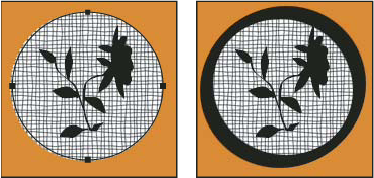
Path selected (left) and stroked (right)
 Stroke a path using the current Stroke Path settings
- Select the path in the Paths palette.
- Click the Stroke Path button
 at
the bottom of the Paths palette. Each click of the Stroke Path button
builds up the opacity of the stroke and, in some cases, makes it
look thicker.
at
the bottom of the Paths palette. Each click of the Stroke Path button
builds up the opacity of the stroke and, in some cases, makes it
look thicker.
Stroke a path and specify options
- Select the path in the Paths palette.
- Select the painting or editing tool you want to use to stroke the path. Set the tool options, and specify a brush from the options bar. You must specify the tool’s settings before opening the Stroke Path dialog box. For information on specific tool settings, see Smudge image areas and About painting tools, options, and palettes.
- To stroke the path, do one of the following:
-
Alt-click (Windows) or Option-click (Mac OS) the Stroke Path button
at
the bottom of the Paths palette. -
Alt-drag (Windows) or Option-drag (Mac OS) the path to the Stroke Path button.
-
Choose Stroke Path from the Paths palette menu. If the selected path is a path component, this command changes to Stroke Subpath.
-
- If you did not select a tool in step 2, choose a tool from the Stroke Path dialog box.
- Click OK.