

Adjust path components
You can reposition a path component (including a shape in a shape layer) anywhere within an image. You can copy components within an image or between two Photoshop images. Using the Path Selection tool, you can merge overlapping components into a single component. All vector objects, whether they are described by a saved path, work path, or vector mask, can be moved, reshaped, copied, or deleted.
You can also use the Copy and Paste commands to duplicate vector objects between a Photoshop image and an image in another application, such as Adobe Illustrator.
 Change the overlap mode for the selected path component
-
Using
the Path Selection tool
 , drag
a marquee to select existing path areas.
, drag
a marquee to select existing path areas. - Choose a shape area option in the options bar:
- Add To Shape Area

- Adds the path area to overlapping path areas.
- Subtract From Shape Area

- Removes the path area from overlapping path areas.
- Intersect Shape Areas

- Restricts the area to the intersection of the selected path area and overlapping path areas.
- Exclude Overlapping Shape Areas

- Excludes the overlap area.
- Add To Shape Area
Show or hide the selected path component
Do one of the following:
- Choose View > Show > Target Path.
- Choose View > Extras. This command also shows or hides a grid, guides, selection edges, annotations, and slices.
Move a path or path component
-
Select
the path name in the Paths palette, and use the Path Selection tool to
select the path in the image. To select multiple path components,
Shift-click each additional path component to add it to the selection.
- Drag the path to its new location. If you move any part
of a path beyond the canvas boundaries, the hidden part of the path
is still available.
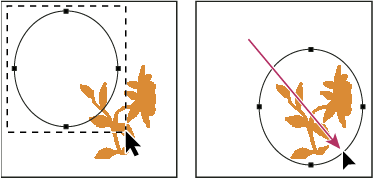 Dragging a path to a new location
Note: If you drag a path so that the move pointer is over another open image, the path is copied to that image.
Reshape a path component
-
Select
the path name in the Paths palette, and use the Direct Selection tool
 to
select an anchor point in the path.
to
select an anchor point in the path. - Drag the point or its handles to a new location.
Merge overlapping path components
-
Select
the path name in the Paths palette, and select the Path Selection tool .
- Click Combine in the options bar to create a single component from all overlapping components.
Copy a path component or path
Do any of the following:
- To copy a path component as you move
it, select the path name in the Paths palette, and click a path
component with the Path Selection tool . Then
Alt-drag (Windows) or Option-drag (Mac OS) the selected
path.
- To copy a path without renaming it, drag the path name
in the Paths palette to the New Path button
 at
the bottom of the palette.
at
the bottom of the palette. - To copy and rename a path, Alt-drag (Windows) or Option-drag (Mac OS) the path in the Paths palette to the New Path button at the bottom of the palette. Or select the path to copy, and choose Duplicate Path from the Paths palette menu. Enter a new name for the path in the Duplicate Path dialog box, and click OK.
- To copy a path or path component into another path, select the path or path component you want to copy, and choose Edit > Copy. Then select the destination path, and choose Edit > Paste.
Copy path components between two Photoshop files
- Open both images.
- In the source image, use the Path Selection tool to
select the entire path or the path components that you want to copy.
- To copy the path component, do any of the following:
-
Drag the path component from the source image to the destination image. The path component is copied to the active path in the Paths palette.
-
In the source image, select the path name in the Paths palette and choose Edit > Copy to copy the path. In the destination image, choose Edit > Paste. You can also use this method to combine paths in the same image.
-
To paste the path component into the destination image, select the path component in the source image, and choose Edit > Copy. In the destination image, choose Edit > Paste.
-
Delete a path component
-
Select
the path name in the Paths palette, and click a path component with
the Path Selection tool .
- Press Backspace (Windows) or Delete (Mac OS) to delete the selected path component.
Align and distribute path components
You can align and distribute path components that are described in a single path. For example, you can align the left edges of several shapes contained in a single layer or distribute several components in a work path along their horizontal centers.
- To align components, use the Path Selection
tool to
select the components you want to align, and select one of the alignment
options from the options bar.
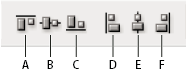 Alignment options
- A.
- Top
- B.
- Vertical Centers
- C.
- Bottom
- D.
- Left
- E.
- Horizontal Centers
- F.
- Right
- To distribute components, select at least three components
you want to distribute, and then select one of the distribute options
from the options bar.
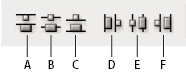 Distribute options
- A.
- Top
- B.
- Vertical Centers
- C.
- Bottom
- D.
- Left
- E.
- Horizontal Centers
- F.
- Right