

Reconstruct distortions
After you distort the preview image, you can use a variety of controls and reconstruction modes to reverse changes or redo the changes in new ways. Reconstructions can be applied two ways. You can apply a reconstruction to the entire image, smoothing out the distortion in unfrozen areas, or you can use the reconstruction tool to reconstruct specific areas. If you want to prevent reconstruction of distorted areas, you can use the Freeze tool.
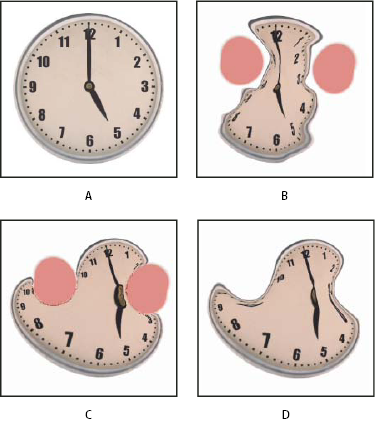
- A.
- Original image
- B.
- Distorted with frozen areas
- C.
- Reconstructed in Rigid mode (using button)
- D.
- Thawed, edges reconstructed in Smooth mode (using tool)
 Reconstruct an entire image
- Select a reconstruction mode from the Reconstruct Options area of the dialog box.
- Press the Reconstruct button in the Reconstruction Options area to apply the effect once. You can apply the reconstruction more than once to create a less distorted appearance.
Remove all distortions
 Click the Restore All button in
the Reconstruct Option area of the dialog box. This removes distortions
even in frozen areas.
Click the Restore All button in
the Reconstruct Option area of the dialog box. This removes distortions
even in frozen areas.Reconstruct part of a distorted image
- Freeze areas you want to keep distorted.
- Select the Reconstruct tool
 . Choose
one of these Reconstruct tool modes from the Brush Options area
of the dialog box.
. Choose
one of these Reconstruct tool modes from the Brush Options area
of the dialog box. - Hold down the mouse button or drag over the area. Pixels move more quickly at the brush center. Shift-click to reconstruct in a straight line between the current point and the previously clicked point.
Repeat distortions sampled from a starting point
- Select the Reconstruct tool , and
in the preview image, hold down the mouse button or drag from a
starting point.
This creates a copy of the distortion sampled at the starting point, much as the Clone tool does when you use it to paint a copy of an area. If there is no distortion, the effect is the same as using Revert mode. You can set new starting points and use the Reconstruct tool repeatedly to create a variety of effects.
Reconstruction modes
You can choose one of the following reconstruction modes:
- Rigid
- Maintains right angles in the pixel grid (as shown by the mesh) at the edges between frozen and unfrozen areas, sometimes producing near-discontinuities at the edges. This restores the unfrozen areas so that they approximate their original appearance. (To restore their original appearance, use Revert reconstruction mode.)
- Stiff
- Acts like a weak magnetic field. At the edges between frozen and unfrozen areas, the unfrozen areas take on the distortions of the frozen areas. As the distance from frozen areas increases, the distortions lessen.
- Smooth
- Propagates the distortions in frozen areas throughout unfrozen areas, with smoothly continuous distortions.
- Loose
- Produces effects similar to Smooth, with even greater continuity between distortions in frozen and unfrozen areas.
- Revert
- Scales back distortions uniformly without any kind of smoothing.
Reconstruct tool modes
The Reconstruct tool has three modes that use the distortion at the point where you first clicked the tool (start point) to reconstruct the area over which you use the tool. Every time you click, you set a new start point; so, if you want to extend an effect from one start point, don’t release the mouse button until you finish using the Reconstruct tool.
- Displace
- Reconstructs unfrozen areas to match the displacement at the start point for the reconstruction. You can use Displace to move all or part of the preview image to a different location. If you click and gradually spiral out from the start point, you displace or move a portion of the image to the area you brush over.
- Amplitwist
- Reconstructs unfrozen areas to match the displacement, rotation, and overall scaling that exist at the start point.
- Affine
- Reconstructs unfrozen areas to match all distortions that exist at the start point, including displacement, rotation, horizontal and vertical scaling, and skew.