

Improve shadow and highlight detail
The Shadow/Highlight command is suitable for correcting photos with silhouetted images due to strong backlighting or correcting subjects that have been slightly washed out because they were too close to the camera flash. The adjustment is also useful for brightening areas of shadow in an otherwise well‑lit image. The Shadow/Highlight command does not simply lighten or darken an image; it lightens or darkens based on the surrounding pixels (local neighborhood) in the shadows or highlights. For this reason, there are separate controls of the shadows and the highlights. The defaults are set to fix images with backlighting problems. The Shadow/Highlight command also has a Midtone Contrast slider, Black Clip option, and White Clip option for adjusting the overall contrast of the image.
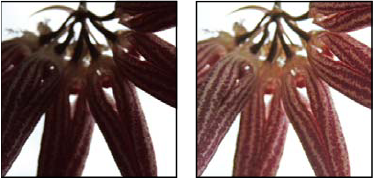
 Adjust image shadows and highlights
Shadow/Highlight command options
- Tonal Width
-
Controls the range of tones in the shadows or highlights
that are modified. Smaller values restrict the adjustments to the
darker regions for shadow correction and the lighter regions for
highlight correction. Larger values increase the range of tones
that will be adjusted further into the midtones. For example, at
100% the shadow tonal width slider affects the shadows the most, the
midtones are partially affected, but the brightest highlights are
not affected. Tonal width varies from image to image. Too large
a value may introduce halos around very dark or very light edges.
The default settings attempt to reduce these artifacts. Halos may
also occur when the Shadow or Highlight Amount values are too large.
 Tonal Width is set to 50% by default. If you find
that you are trying to lighten a dark subject but the midtones or
lighter regions are changing too much, try reducing Shadow Tone
Width towards zero so that only the darkest regions are lightened.
If, however, you need to brighten the midtones as well as the shadows,
increase Shadows Tonal Width toward 100%.
Tonal Width is set to 50% by default. If you find
that you are trying to lighten a dark subject but the midtones or
lighter regions are changing too much, try reducing Shadow Tone
Width towards zero so that only the darkest regions are lightened.
If, however, you need to brighten the midtones as well as the shadows,
increase Shadows Tonal Width toward 100%. - Radius
- Controls the size of the local neighborhood around each pixel. Neighboring pixels are used to determine whether a pixel is in the shadows or highlights. Moving the slider to the left specifies a smaller area, and moving it to the right specifies a larger area. The optimum local neighborhood size depends on the image. It’s best to experiment with the adjustment. If the radius is too large, the adjustment tends to brighten (or darken) the whole image rather than brightening the subject only. It’s best to set the radius to roughly the size of the subjects of interest in the image. Experiment with different Radius settings to obtain the best balance between subject contrast and differential brightening (or darkening) of the subject compared to the background.
- Color Correction
-
Allows fine‑tuning of the colors in regions of the image
that have changed. This adjustment is available only in color images.
For example, by increasing the setting of the Shadows Amount slider,
you bring out colors that were dark in the original image. You may
want these colors to be more vivid or less vivid. Adjust the Color
Correction slider to achieve the best results. In general, increasing
the values tends to produce colors that are more saturated, and decreasing
the values produces colors that are less saturated.
Note: Because the Color Correction slider affects only changed portions of the image, the amount of color variation depends on how much shadow or highlight is applied. The greater the correction of shadows and highlights, the greater the range of color correction available. The Color Correction slider exerts subtle control over the darkened or lightened colors in the image. If you want to change the color hues or saturation of the whole image, use the Hue/Saturation command after applying the Shadow/Highlight command.
- Brightness
- Adjusts the brightness in a grayscale image. This adjustment is available only for grayscale images. Moving the Brightness slider to the left darkens a grayscale image, and moving the slider to the right lightens a grayscale image.
- Midtone Contrast
- Adjusts the contrast in the midtones. Move the slider to the left to reduce the contrast and to the right to increase the contrast. You can also enter a value in the Midtone Contrast text box. A negative value reduces contrast, and a positive value increases contrast. Increasing midtone contrast produces greater contrast in the midtones while tending to darken the shadows and lighten the highlights.
- Black Clip And White Clip
- Specifies how greatly the shadows and highlights are clipped to the new extreme shadow (level 0) and highlight (level 255) colors in the image. Larger values produce an image with greater contrast. Be careful not to make the clipping values too large, because doing so reduces detail in the shadows or highlights (the intensity values are clipped and rendered as pure black or pure white).