

To set target values using the eyedroppers
-
Select the Eyedropper tool
 in
the toolbox. You can choose 3 by 3 Average from the Sample Size
menu in the Eyedropper tool options. This ensures a representative
sample of an area rather than the value of a single screen pixel.
in
the toolbox. You can choose 3 by 3 Average from the Sample Size
menu in the Eyedropper tool options. This ensures a representative
sample of an area rather than the value of a single screen pixel. - Open the Levels or Curves dialog box. Choose Image >
Adjustments, and then choose Levels or Curves. You can also use
an adjustment layer.
When you open Levels or Curves, the Eyedropper tool
is
active outside the dialog box. You still have access to the scroll
controls, the Hand tool, and the Zoom tool  through
keyboard shortcuts.
through
keyboard shortcuts. - Do one of the following to identify areas of highlights
and shadows that you want to preserve in the image:
-
Move the pointer around the image, and look at the Info palette to find the lightest and darkest areas that you want preserved (not clipped to pure black or white). (See View color values in an image.)
-
Drag the pointer in the image, and look at the Curves dialog box to find the lightest and darkest points you want to preserve. This method does not work if the Curves dialog box is set to the CMYK composite channel.
When identifying the lightest highlight details that you want targeted to a printable (lower) value, don’t include specular highlights. Specular highlights such as the highlight glint in jewelry or a spot of glare are meant to be the brightest points in an image. It’s usually desirable to clip specular highlight pixels (pure white, no detail) so that no ink is printed on the paper.
 You
can also use the Threshold command to identify representative highlights and
shadows before opening Levels or Curves. (See Create a two‑value black and white image.)
You
can also use the Threshold command to identify representative highlights and
shadows before opening Levels or Curves. (See Create a two‑value black and white image.) -
- To assign highlight values to the lightest area of the
image, double-click the Set White Point Eyedropper tool
 in
the Levels or Curves dialog box to display the Color Picker. Enter
the values you want to assign to the lightest area in the image, and
click OK. Then click the highlight you identified in step 3.
If you accidentally click the wrong highlight,
hold down Alt (Windows) or Option (Mac OS), and click Reset
in the Levels or Curves dialog box.
in
the Levels or Curves dialog box to display the Color Picker. Enter
the values you want to assign to the lightest area in the image, and
click OK. Then click the highlight you identified in step 3.
If you accidentally click the wrong highlight,
hold down Alt (Windows) or Option (Mac OS), and click Reset
in the Levels or Curves dialog box.Depending on the output device, you can achieve a good highlight in an average-key image using CMYK values of 5, 3, 3, and 0, respectively, when you are printing on white paper. An approximate RGB equivalent is 244, 244, 244, and an approximate grayscale equivalent is a 4% dot. You can approximate these target values quickly by entering 96 in the Brightness (B) text box under the HSB area of the Color Picker.
With
a low‑key image, you may want to set the highlight to a lower value
to avoid too much contrast. Experiment with Brightness values between
96 and 80.The pixel values are adjusted throughout the image proportionately to the new highlight values. Any pixels lighter than the area you clicked are clipped (adjusted to level 255, pure white). The Info palette shows the values both before and after the color adjustment.
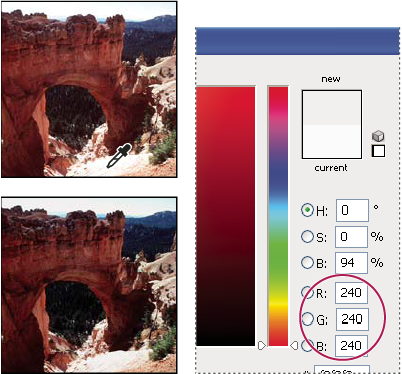 Setting the target value for the Set White Point Eyedropper tool and then clicking a highlight to assign it the target value
- To assign shadow values to the darkest area of the image
that you want preserved, double-click the Set Black Point Eyedropper
tool
 in
the Levels or Curves dialog box to display the Color Picker. Enter
the values you want to assign to the darkest area in the image,
and click OK. Then click the shadow you identified in step 3.
in
the Levels or Curves dialog box to display the Color Picker. Enter
the values you want to assign to the darkest area in the image,
and click OK. Then click the shadow you identified in step 3.
When you’re printing on white paper, you can usually achieve a good shadow in an average-key image using CMYK values of 65, 53, 51, and 95. An approximate RGB equivalent is 10, 10, 10, and an approximate grayscale equivalent is a 96% dot.You can approximate these values quickly by entering 4 in the Brightness (B) text box under the HSB area of the Color Picker.
With
a high‑key image, you may want to set the shadow to a higher value
to maintain detail in the highlights. Experiment with Brightness
values between 4 and 20.