

Extract an object from its background
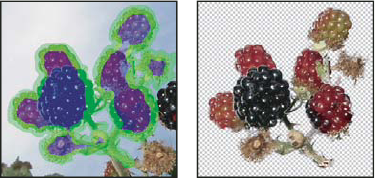
The Extract filter provides a sophisticated way to isolate a foreground object and erase its background on a layer. Even objects with wispy, intricate, or undefinable edges may be clipped from their backgrounds with a minimum of manual work. You use tools in the Extract dialog box to specify which part of the image to extract.
When you extract the object, Photoshop erases its background to transparency. Pixels on the edge of the object lose the color components derived from the background, so they can blend with a new background without producing a color halo.
 You can add back opacity to the background and
create other effects using the Edit > Fade command after
an extraction.
You can add back opacity to the background and
create other effects using the Edit > Fade command after
an extraction. -
In
the Layers palette, select the layer containing the object you want
to extract. If you select a background layer, it becomes a normal
layer after the extraction. If the layer contains a selection, the
extraction erases the background only in the selected area.
To
avoid losing the original image information, duplicate the layer
or make a snapshot of the original image state.
-
Choose
Filter > Extract, and then specify tool options:
- Brush Size
-
Enter a value, or drag the slider to specify the width
of the Edge Highlighter tool
 . You
also use the Brush Size option to specify the width of the Eraser,
Cleanup, and Edge Touchup tools.
. You
also use the Brush Size option to specify the width of the Eraser,
Cleanup, and Edge Touchup tools.
- Highlight
- Choose a preset color option for the highlight that appears around objects when you use the Edge Highlighter tool, or choose Other to pick a custom color for the highlight.
- Fill
- Choose a preset color option, or choose Other to pick a custom color for the area covered by the Fill tool.
- Smart Highlighting
-
Select this option if you are highlighting a well-defined edge.
The option helps you keep the highlight on the edge, and applies
a highlight that is just wide enough to cover the edge, regardless
of the current brush size.Note: If you use Smart Highlighting to mark an object edge that’s near another edge, decrease the brush size if conflicting edges pull the highlight off the object edge. If the object edge has a uniform color on one side and high-contrast edges on the other side, keep the object edge within the brush area but center the brush on the uniform color.Specify Extraction options:
- Textured Image
- Select this option if the foreground or background of your image contains a lot of texture.
- Smooth
- Enter a value or drag the slider to increase or decrease the smoothness of the outline. It’s usually best to begin with zero or a small value to avoid unwanted blurring of details. If there are sharp artifacts in the extraction result, you can increase the Smooth value to help remove them in the next extraction.
- Channel
- Choose the alpha channel from the Channel menu to base the highlight on a selection saved in an alpha channel. The alpha channel should be based on a selection from the edge boundary. If you modify a highlight based on a channel, the channel name in the menu changes to Custom. Your image must have an alpha channel for the Channel option to be available.
- Force Foreground
- Select this option if the object is especially intricate or lacks a clear interior.
- Select the Edge Highlighter tool , and
draw to define the edge of the object you want to extract. Drag
so that the highlight slightly overlaps both the foreground object
and its background. Use a large brush to cover wispy, intricate edges
where the foreground blends into the background, as with hair or
trees.
Use either the Zoom tool or the Hand tool
to adjust the view as needed.
If you need to erase the highlight, select the Eraser tool
 , and
drag it over the highlight. To erase the entire highlight, press
Alt+Backspace (Windows) or Option+Delete (Mac OS).
, and
drag it over the highlight. To erase the entire highlight, press
Alt+Backspace (Windows) or Option+Delete (Mac OS).If the object has a well-defined interior, make sure the highlight forms a complete enclosure. You do not need to highlight areas where the object touches the image boundaries. If the object lacks a clear interior, highlight the entire object.
Note: You can’t highlight the entire object if you’ve selected Textured Image or Force Foreground. - Define the foreground area by doing one of the following:
-
If the object has a well-defined interior, select the Fill tool
 . Click
inside the object to fill its interior. Clicking a filled area again
with the Fill tool removes the fill.
. Click
inside the object to fill its interior. Clicking a filled area again
with the Fill tool removes the fill. -
If you’ve selected Force Foreground, select the Eyedropper tool
 , and
click inside the object to sample the foreground color, or click
in the Color text box and use a color picker to select the foreground
color. This technique works best with objects that contain tones
of a single color.
, and
click inside the object to sample the foreground color, or click
in the Color text box and use a color picker to select the foreground
color. This technique works best with objects that contain tones
of a single color.
-
- Touch up the extraction results by doing one of the following:
-
To erase background traces in the extracted area, use the Cleanup tool
 . The
tool subtracts opacity and has a cumulative effect. You can also
use the Cleanup tool to fill gaps in the extracted object. Hold
down Alt (Windows) or Option (Mac OS) while dragging to
add back opacity.
. The
tool subtracts opacity and has a cumulative effect. You can also
use the Cleanup tool to fill gaps in the extracted object. Hold
down Alt (Windows) or Option (Mac OS) while dragging to
add back opacity. -
To edit the edge of the extracted object, use the Edge Touchup tool
 . The tool
sharpens edges and has a cumulative effect. If there is no clear
edge, the Edge Touchup tool adds opacity to the object or subtracts
opacity from the background.
. The tool
sharpens edges and has a cumulative effect. If there is no clear
edge, the Edge Touchup tool adds opacity to the object or subtracts
opacity from the background.
You can also clean up the image after an
extraction by using the Background Eraser and History Brush tools
in the toolbox. -