

Copy selections
You can use the Move tool to copy selections as you drag them within or between images, or you can copy and move selections using the Copy, Copy Merged, Cut, and Paste commands. Dragging with the Move tool saves memory because the clipboard is not used as it is with the Copy, Copy Merged, Cut, and Paste commands.
- Copy
- Copies the selected area on the active layer.
- Copy Merged
- Makes a merged copy of all the visible layers in the selected area.
- Paste
- Pastes a cut or copied selection into another part of the image or into another image as a new layer. If you have a selection, the Paste command places the copied selection over the current selection. Without an active selection, Paste places the copied selection in the middle of the view area.
- Paste Into
-
Pastes
a cut or copied selection inside another selection in the same image
or a different image. The source selection is pasted onto a new
layer, and the destination selection border is converted into a
layer mask.
When a selection or layer is pasted between images with different resolutions, the pasted data retains its pixel dimensions. This can make the pasted portion appear out of proportion to the new image. Use the Image Size command to make the source and destination images the same resolution before copying and pasting, or use the Free Transform command to resize the pasted content.
Depending on your color management settings and the color profile associated with the file (or imported data), you may be prompted to specify how to handle color information in the file (or imported data).
 Copy a selection
Copy a selection while dragging
-
Select the Move tool
 , or
hold down Ctrl (Windows) or Command (Mac OS) to activate
the Move tool.
, or
hold down Ctrl (Windows) or Command (Mac OS) to activate
the Move tool. - Hold down Alt (Windows) or Option (Mac OS),
and drag the selection you want to copy and move.
When copying between images, drag the selection from the active image window into the destination image window. If nothing is selected, the entire active layer is copied. As you drag the selection over another image window, a border highlights the window if you can drop the selection into it.
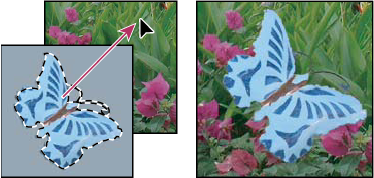 Dragging a selection into another image
Create multiple copies of a selection within an image
-
Select the Move tool , or
hold down Ctrl (Windows) or Command (Mac OS) to activate
the Move tool.
- Copy the selection:
-
Hold down Alt (Windows) or Option (Mac OS), and drag the selection.
-
To copy the selection and offset the duplicate by 1 pixel, hold down Alt or Option, and press an arrow key.
-
To copy the selection and offset the duplicate by 10 pixels, press Alt+Shift (Windows) or Option+Shift (Mac OS), and press an arrow key.
As long as you hold down Alt or Option, each press of an arrow key creates a copy of the selection and offsets it by the specified distance from the last duplicate. In this case, the copy is made on the same layer.
-
Paste one selection into another
- Choose Edit > Paste Into. The contents of
the source selection appear within the destination selection.
The Paste Into operation adds a layer and layer mask to the image. In the Layers palette, the new layer contains a layer thumbnail for the pasted selection next to a layer mask thumbnail. The layer mask is based on the selection you pasted into: the selection is unmasked (white), the rest of the layer is masked (black). The layer and layer mask are unlinked—that is, you can move each one independently.
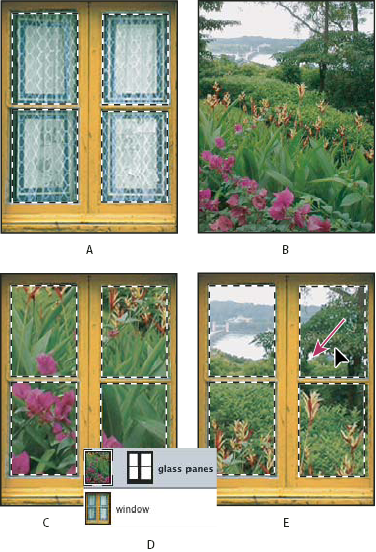 Using the Paste Into command
- A.
- Window panes selected
- B.
- Copied image
- C.
- Paste Into command
- D.
- Layer thumbnails and layer mask in Layers palette
- E.
- Pasted image repositioned
- Select the Move tool , or
hold down the Ctrl (Windows) or Command (Mac OS) key to
activate the Move tool. Then drag the source contents until the part
you want appears through the mask.