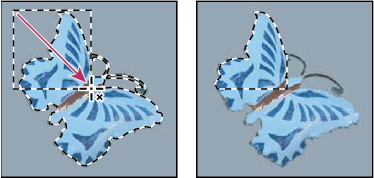
Adjust selections manually
You can use the selection tools to add to or subtract from existing pixel selections.
Before manually adding to or subtracting from a selection, you may want to set the feather and anti-aliasing values in the options bar to the same settings used in the original selection.
 Add to a selection or select an additional area
- Make a selection.
- Using any selection tool, do one of the following:
-
Select the Add To Selection option
 in
the options bar, and drag to add to the selection.
in
the options bar, and drag to add to the selection. -
Hold down Shift, and drag to add to the selection.
-
A plus sign appears next to the pointer when you’re adding to a selection.
Subtract from a selection
- Make a selection.
- Using any selection tool, do one of the following:
-
Select the Subtract From Selection option
 in
the options bar, and drag to intersect with other selections.
in
the options bar, and drag to intersect with other selections. -
Hold down Alt (Windows) or Option (Mac OS), and drag to subtract another selection.
-
A minus sign appears next to the pointer when you’re subtracting from a selection.
Select only an area intersected by other selections
- Make a selection.
- Using any selection tool, do one of the following:
-
Select the Intersect With Selection option
 in
the options bar, and drag.
in
the options bar, and drag. -
Hold down Alt+Shift (Windows) or Option+Shift (Mac OS) and drag over the portion of the original selection that you want to select.
-
An “x” appears next to the pointer when you’re selecting an intersected area.