

Select with the marquee tools
The marquee tools let you select rectangles, ellipses, and 1‑pixel rows and columns.
- Select a marquee tool:
-
Rectangular Marquee

- Makes a rectangular selection (or a square, when used with the Shift key).
-
Elliptical
Marquee

- Makes an elliptical selection (or a circle, when used with the Shift key).
-
Single Row
 or
Single Column
or
Single Column  Marquee
 - Defines the border as a 1‑pixel‑wide row or column.
-
Rectangular Marquee
- Specify one of the selection options in the options bar.
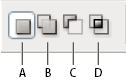 Selection options
- A.
- New
- B.
- Add To
- C.
- Subtract From
- D.
- Intersect With
- For the Rectangle Marquee tool or the Elliptical Marquee
tool, choose a style in the options bar:
- Normal
- Determines marquee proportions by dragging.
- Fixed Aspect Ratio
- Sets a height-to-width ratio. Enter values (decimal values are valid) for the aspect ratio. For example, to draw a marquee twice as wide as it is high, enter 2 for the width and 1 for the height.
- Fixed Size
- Specifies set values for the marquee’s height and width. Enter pixel values in whole numbers.
 In addition to pixels (px) you can
also use specific units such as inches (in) or centimeters (cm)
in height and width values.
In addition to pixels (px) you can
also use specific units such as inches (in) or centimeters (cm)
in height and width values. - Do one of the following to make a selection:
-
With the Rectangle Marquee tool or the Elliptical Marquee tool, drag over the area you want to select.
-
Hold down Shift as you drag to constrain the marquee to a square or circle (release the mouse button before you release Shift to keep the selection shape constrained).
-
To drag a marquee from its center, hold down Alt (Windows) or Option (Mac OS) after you begin dragging.
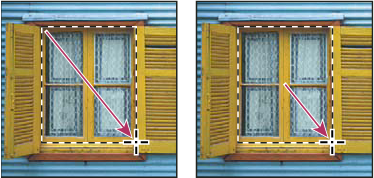 Dragging a marquee from the corner of an image (left), and from the center of an image (right) by pressing Alt/Option as you drag
-
With the Single Row or Single Column Marquee tool, click near the area you want to select, and then drag the marquee to the exact location. If no marquee is visible, increase the magnification of your image view.
To reposition a rectangle or elliptical
marquee, first drag to create the selection border, keeping the
mouse button depressed. Then hold down the spacebar and continue
to drag. Release the spacebar, but keep the mouse button depressed,
if you need to continue adjusting the selection border. -