

Select with the Quick Selection tool
You can use the Quick Selection tool to quickly “paint” a selection using an adjustable round brush tip. As you drag, the selection expands outward and automatically finds and follows defined edges in the image.
- To change the Quick Selection tool brush tip size, click
the Brush menu in the options bar and type in a pixel size or move
the Diameter slider. Use the Size pop‑up menu options to make the
brush tip size sensitive to pen pressure or a stylus wheel.
 When creating a selection, press the right
bracket (]) to increase the Quick Selection tool brush tip size;
press the left bracket ([) to decrease the brush tip size.
When creating a selection, press the right
bracket (]) to increase the Quick Selection tool brush tip size;
press the left bracket ([) to decrease the brush tip size. - Paint inside the part of the image you want to select.
The selection grows as you paint. If updating is slow, continue to drag to allow time to complete work on the selection. As you paint near the edges of a shape, the selection area extends to follow the contours of the shape edge.
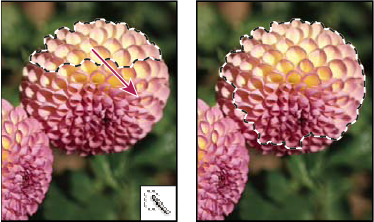 Painting with the Quick Selection tool to extend the selection
If you stop dragging and then click
or drag in a nearby area, the selection will grow to include the
new area.-
To subtract from a selection, click the Subtract from option in the options bar, then drag over the existing selection.
-
To temporarily switch between add and subtract modes, hold down the Alt (Windows) or Option (Mac) key.
-
To change the tool cursor, choose Edit > Preferences > Cursors > Painting Cursors (Windows) or Photoshop > Preferences > Cursors > Painting Cursors (Mac OS). Normal Brush Tip displays the standard Quick Selection cursor with a plus or minus sign to show the selection mode.
-